
Projections
The Projections view monitors all projections and event subscriptions registered in your Marten- or Polecat-based services. Each projection is tracked by its shard — a specific named partition of the projection's work.
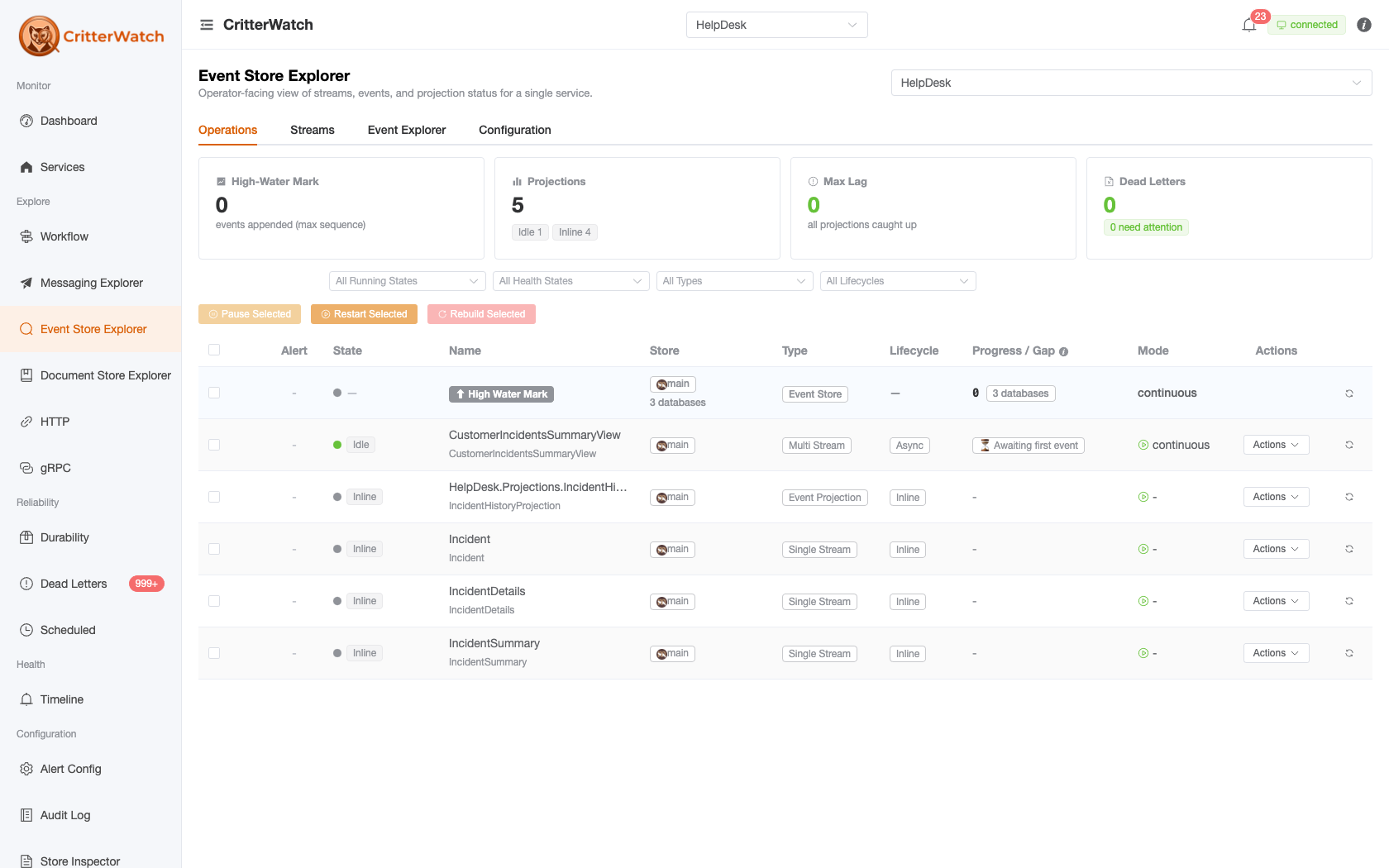
Where this lives now
The standalone Projections page was folded into the Event Store Explorer as its Operations tab; /projections redirects there. The grid and controls below are unchanged — this page documents that Operations view.
Projections Grid
The grid shows all known projection shards across all monitored services:
The grid is deliberately parsimonious with horizontal space — several lower-signal columns are folded into others as dots or muted subscripts rather than standing on their own.
| Column | Description |
|---|---|
| Alert | Active lag / staleness alert for this projection (critical or warning), if any |
| State | CritterWatch's interpreted projection state — Healthy / Catching-up / Stalled / Failing / Paused / Idle / Inline / Unknown — fused from staleness, gap, apply errors, and dead-letter events. A small liveness dot to its left shows how recently the shard reported in (node alive); the tag shows whether the projection itself is healthy. |
| Service | Which monitored service owns this projection (hidden when a single service is filtered) |
| Name | Projection and shard identifier (e.g., TripSummary:All); the High Water Mark row is pinned first within each service. A muted subscript beneath it shows the implementing .NET type (for self-aggregating projections, the document type). |
| Store | Which event store this projection belongs to — an engine icon (Marten / Polecat) plus the store name. Hover for Main DocumentStore registration or the ancillary store's interface name. Essential in multi-store apps. |
| Type | Single Stream / Multi Stream / Subscription / Flat Table / Event Projection / Composite (neutral grey — a classification, not a status) |
| Lifecycle | Async / Inline / Live (neutral grey — not a status) |
| Node | The node currently executing the shard |
| Progress / Gap | For continuous projections, the gap (events behind the high water mark) with a lag-trend arrow; during a rebuild, a progress bar. A muted subscript shows when the shard last advanced. |
| Mode | The shard's run mode with a running / paused / stopped icon; the assigned node renders as a muted subscript beneath it. |
The Running State, Health State, Type, and Lifecycle filter dropdowns each show a per-option count of how many projections sit in each bucket, so you can see what's out there before filtering (the service scope comes from the page's service selector). A metrics header above the filters summarises the selected store: High-Water Mark, Projections (with a health-count pill), Max Lag, and Dead Letters.
Rows lead with a selection checkbox; the Pause Selected / Restart Selected / Rebuild Selected toolbar applies the lifecycle actions to every ticked shard at once (each shows the ticked count and confirms before acting). The same three actions are available per-row under Actions.
State Colors
- Green (Healthy) — advancing, caught up, no errors
- Yellow (Catching-up / Stalled) — behind the high water mark beyond the threshold, or no progress within the expected window
- Red (Failing) — an apply error is latched, or the projection has dead-letter events
- Gray (Paused / Idle) — paused by operator action, or registered but not currently advancing
Stall Detection
A projection is considered stalled if its sequence number has not advanced within a configurable time window (default: 5 minutes). Stalled projections receive a warning badge and can trigger alerts.
CritterWatch can be configured to automatically attempt projection restart on stall detection. See Alert System for configuration.
Projection Detail
Click a projection row to open the detail panel:
Sequence Chart
A time-series chart showing the projection's sequence number and the event store high water mark over the past hour. The gap between the lines represents lag. A widening gap indicates the projection is falling behind; converging lines indicate it is catching up.
Alert History
A timeline of all alerts raised for this projection:
- Stall detected / resolved
- Lag threshold exceeded / recovered
- Restart triggered (automatic or manual)
- Operator pause / restart / rebuild / rewind
Controls
Pause — stop the projection shard. Messages continue to be written to the event store, but this shard will not advance. Use when you need to investigate shard state or before making schema changes. Requires confirmation.
Restart — resume a paused projection shard from where it stopped. Use after resolving the issue that caused you to pause.
Rebuild — reset the projection to sequence 0 and rebuild the entire read model from scratch. This is destructive and can take a long time for large event stores. Requires explicit confirmation. A progress indicator shows estimated completion during the rebuild.
For a rebuild that spans multiple stores or tenants — or one long enough that you'll want per-cell tracking, retry, and cancel — start it from the Rebuilds page instead, which runs through the batch-orchestration engine rather than the direct command.
Rebuild works for Inline projections too, not just async ones. An Inline projection has no async daemon agent, so the console addresses its rebuild by name; it runs through a transient rebuild agent that replays the events and then stops. Because an Inline projection updates synchronously as events are appended, its read model is briefly wiped and repopulated during the rebuild and concurrent live writes can race the replay — so the confirmation for an Inline rebuild carries an extra advanced-operation warning. Prefer a quiet window.
Scheduling a rebuild for later
Schedule rebuild… (per-row Actions menu) defers a one-shot rebuild to a time you pick — "rebuild this projection at 3AM tonight." The dialog defaults to 03:00 tomorrow, because the whole reason to schedule is to move the replay out of business hours. Targeting is identical to an immediate rebuild — the same shard (or name-addressed Inline projection), the same tenant scope — just deferred.
Three things about where that schedule lives, because they are what make it manageable:
- The schedule is held in the monitored service's own message store, not in the console. The service receives the command immediately and schedules the deferred rebuild locally — which is precisely why it shows up on the Scheduled Messages page, where you can see it, cancel it, or reschedule it like any other scheduled message. If you are looking for a schedule you created, look there, filtered to the target service.
- You get two acknowledgements, not one. The row's pending pill resolves immediately with "scheduled for …" — acceptance, not completion — and the real success/failure ack arrives when the rebuild actually runs, hours later. A scheduled rebuild that has not run yet is not stuck.
- There is no duplicate guard, deliberately. The message store exposes no message bodies, so the service cannot distinguish "the same rebuild scheduled twice" from "two different projections scheduled for the same 03:00 window" — refusing on type + time would refuse legitimate schedules. A double-click creates two schedules; both are visible and cancellable on Scheduled Messages.
Durability is a precondition
The deferred rebuild is a local scheduled message on the target service. On a default in-memory local queue it would be lost by a redeploy — silently, and invisible to the Scheduled Messages page (which reads the message store). The service therefore refuses a schedule it cannot durably hold; give it a message store and durable scheduled messages (AlwaysMakeScheduledMessagesDurable() or a durable local queue) rather than working around the refusal.
For agents, the same surface is exposed over MCP: schedule_projection_rebuild, query_scheduled_messages, cancel_scheduled_message and reschedule_scheduled_message — see the MCP tool catalog.
Scheduling a rewind for later
The Rewind dialog — on the Projections page and on a projection's detail page — has a When choice. Now is the rewind it has always sent. Later defers it to a time you pick, defaulting to 03:00 tomorrow for the same reason as a scheduled rebuild: a rewind reprocesses every event from the target position, and the point of scheduling it is to move that replay out of business hours. The mode and target — to the beginning, to a sequence, to a timestamp — are exactly what an immediate rewind would use, just deferred.
Everything above about a scheduled rebuild holds for a scheduled rewind: it is held in the monitored service's own message store and appears on Scheduled Messages to cancel or move; you get two acknowledgements ("Rewind scheduled for …" now, the real outcome when it runs); there is no duplicate guard; and a service without durable scheduled messages refuses the schedule rather than accepting one a redeploy would lose. Two differences are worth knowing:
- A malformed target is refused when you schedule it, not when it runs. A to sequence rewind with no sequence, or a to timestamp rewind with no timestamp, is rejected immediately — otherwise it would sit in the store until 03:00 and fail with nobody watching.
- At run time the rewind needs a live subscription agent, exactly like an immediate one. If the subscription's agent is not running at 03:00 the rewind fails with a reason rather than being forwarded somewhere and reported as done (#1171).
Scheduling a rewind is not yet exposed over MCP — there is no MCP rewind tool at all, immediate or scheduled. A scheduled rewind is visible and manageable through query_scheduled_messages, cancel_scheduled_message and reschedule_scheduled_message, like any scheduled message.
Rewind — reset the projection to a specific point:
- Rewind to beginning — equivalent to rebuild without clearing the read model first
- Rewind to sequence — enter a specific event sequence number
- Rewind to timestamp — enter a date/time to find the nearest sequence and rewind to it
Rebuild vs. Rewind
Rebuild clears the read model and rebuilds from scratch — suitable when the read model is corrupted or the projection logic has changed.
Rewind moves the projection's position marker back without clearing the read model — suitable when you need to reprocess events after a bug fix but the existing data is not invalid.
Multi-Tenant Projections
For multi-tenant services, each tenant has independent projection shards. The grid shows all tenant-specific shards with the tenant ID displayed alongside the shard name. Rebuild and rewind operations target a specific tenant's event store.