
Scheduled Messages
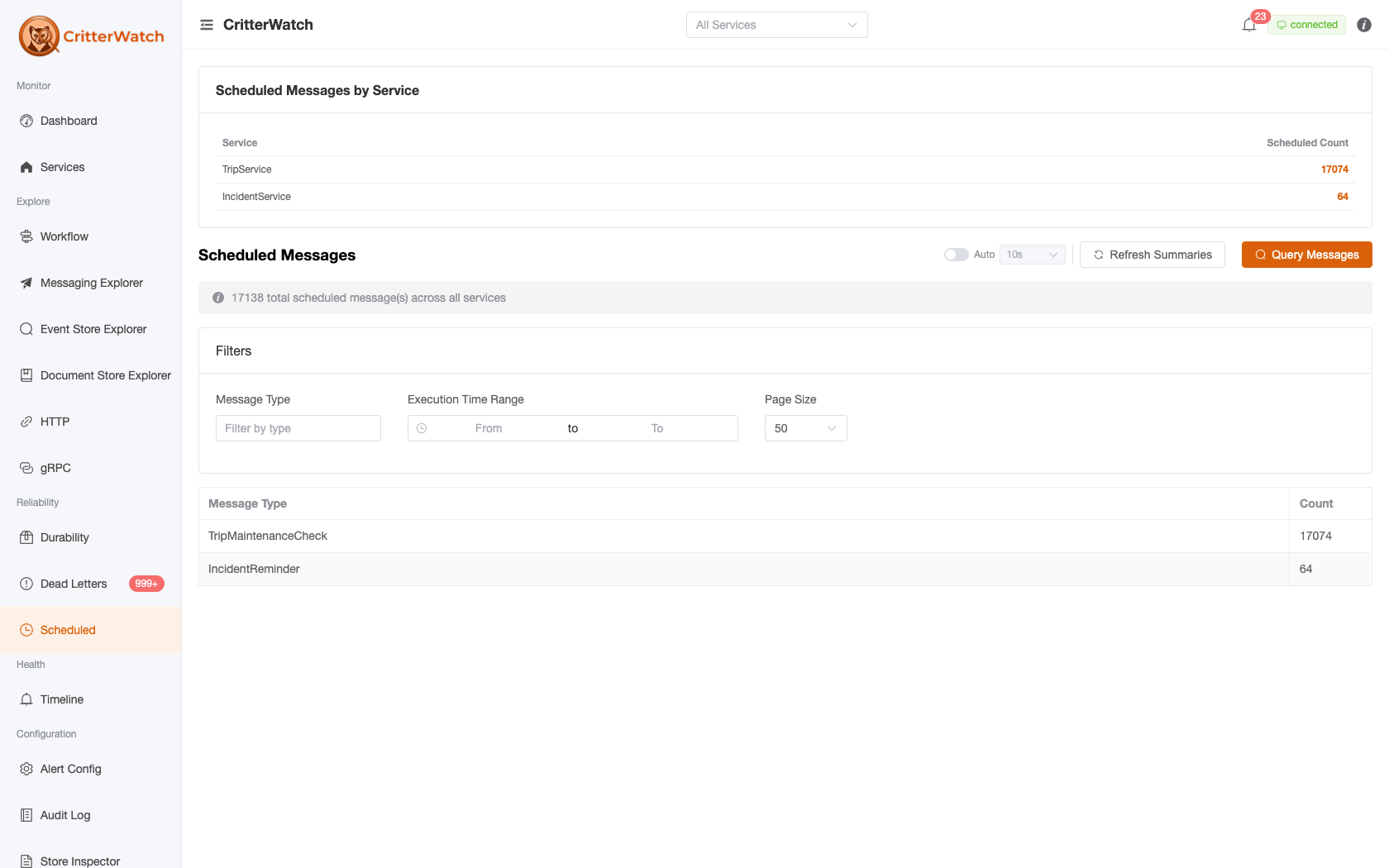
The Scheduled Messages view shows all messages queued for future delivery in your Wolverine services. These are messages scheduled with bus.ScheduleAsync(message, deliveryTime) or similar APIs that are waiting in the durable outbox.
Occurrences, not schedules. This page lists the individual envelopes waiting to be delivered. A recurring cron schedule's pending next occurrence appears here like any other, but the schedule itself — its cron expression, time zone and pause state — lives on the Schedule Explorer. Cancelling an occurrence here does not stop the schedule; the next one is computed and queued as normal.
Scheduled Messages Grid
Each row shows:
| Column | Description |
|---|---|
| Message Type | The .NET type name of the scheduled message |
| Service | Which service owns this scheduled message |
| Tenant | The tenant the message was scheduled for, read from the stored envelope. The column appears only when a listed message has one, and a message scheduled without a tenant shows a dash |
| Scheduled At | When this message was originally scheduled |
| Execute At | When the message is due to be delivered |
| Overdue | Whether the execute time has passed without delivery |
| Message ID | The Wolverine envelope GUID |
Messages that are overdue (past their execute time but not yet delivered) are highlighted in red.
Filtering
Like the DLQ page, scheduled messages load in two stages: summaries refresh automatically (Refresh Summaries / the Auto toggle re-poll), and individual envelope rows load on demand via Query Messages. The filter card offers:
- Message Type — filter by type name
- Execution Time Range — from/to bounds on the execute-at time
- Page Size — rows fetched per query
Service scope comes from the global service selector in the header.
Message Detail
Click a row to open the detail panel showing:
- Full message body — formatted JSON
- Envelope headers — correlation ID, source address, original destination
- Execution schedule — scheduled at, execute at, current time, time remaining/overdue
Edit
Opens a form with two editable fields:
- Execute At — reschedule the delivery time. The new time must be in the future.
- Message body — modify the JSON payload. Useful when the message data needs correction before it fires.
After editing, click Save to send the EditScheduledMessage command to the owning service.
Cancel
Permanently removes the scheduled message from the durable outbox. This is irreversible. The message will never be delivered. Requires confirmation.
Scheduled Projection Rebuilds
A rebuild deferred from the Operations tab's Schedule rebuild… action is an ordinary scheduled message in the target service's own message store — that is the entire reason it is scheduled service-side — so it appears in this grid as a pending RebuildProjection, and Cancel / Edit → Execute At here are how you call one off or move it. Scheduling has no duplicate guard (the store exposes no message bodies to compare), so a double-scheduled rebuild shows as two rows: cancel the one you don't want.
Agents get the same surface over MCP: query_scheduled_messages, cancel_scheduled_message and reschedule_scheduled_message — see the MCP tool catalog.
Overdue Messages
A scheduled message is overdue when its execute time has passed but it has not been delivered. Common causes:
- The service was not running when the message was due
- The service's durable outbox listener was paused
- A database connectivity issue prevented the scheduler from running
Overdue messages will typically be delivered as soon as the service resumes normal operation. They appear in the Overdue filter for monitoring during incidents.
Multi-Tenant Scheduled Messages
How a service stores its tenants decides where the tenant shows up:
- A database per tenant. Each tenant's scheduled messages live in that tenant's own message database. The console queries every database the service reports, and edit and cancel go to the database the message came from.
- Conjoined tenants (one database). Every tenant shares one message store, so the database does not tell you whose message it is. The Tenant column does: it is read from each stored envelope. It also appears in the message detail and in the edit dialog, so you can see whose work you are about to cancel or reschedule.
Correction (#1369). Earlier versions of this page described a Tenant column and a Tenant filter. Neither existed: the listing carried no tenant until Wolverine started reading it from the envelope (wolverine#4666), and there is still no tenant filter. Filter by service and message type instead.